


Screen Recorder: Facecam Audio
4.410.67K Reviews
App Specs
- Version
- 2.7.3
- Updated On
- License
- Free
- Downloads
- 10,000,000+
- Developer
- Prometheus Interactive LLC
- Categories
- Video Players & Editors
- Platform
- Android, iOS
Screenshots

 Analysis by AppCompare
When I first tried Screen Recorder: Facecam Audio, the appeal was immediate: starting a screen capture felt like a simple task rather than a setup project. That matters when I want to save a quick walkthrough, explain a setting to someone, or capture a game moment before it disappears. The novelty is easy to understand; the more useful question is whether a recorder earns a regular place on your phone once that first test is over.
For me, its strongest case is practical rather than spectacular. It brings screen video, a camera overlay, microphone use, and sharing into one familiar kind of tool. It is a free app from Prometheus Interactive LLC in the video players and editors category, with optional in-app purchases. Its Everyone age rating makes it broadly accessible, while the app’s usefulness still depends on whether you regularly need to show what is happening on your screen.
From first recordings to a repeatable habit
I find that the first few recordings are most useful when I treat them as small tests, not finished productions: try the screen alone, then add voice or the camera overlay only if the task benefits. That makes it easier to notice which setup I actually return to and to avoid cluttering clips with elements viewers do not need. Once those choices feel familiar, the next question is whether the app stays convenient to maintain.
Why the first week feels straightforward
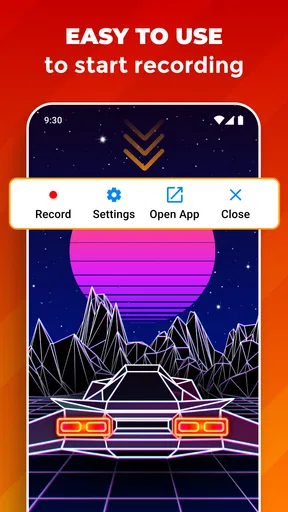
First things first, the user interface is incredibly intuitive. As soon as you open the app, you’re greeted with a clean layout that doesn’t overwhelm you with too many options. The main screen has everything you need right at your fingertips, making it super easy to start recording without a hitch. Trust me, you won’t need a tech manual to figure this one out.
That low-friction start is valuable for recordings that are useful but not worth a complicated production routine. I’d reach for a dedicated recorder like this when I want to demonstrate a sequence of taps, preserve a short clip, or talk someone through an on-screen process. For a one-off capture, the important test is not how many advanced controls an app claims to have; it is whether I can get into the recording without losing the moment while navigating menus.
Recording choices that affect the finished clip
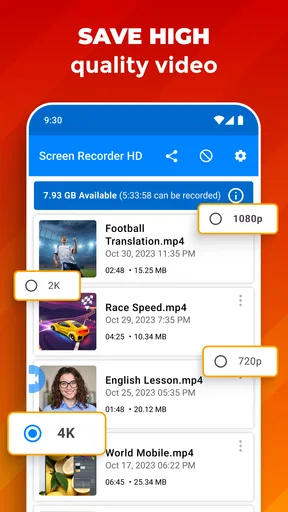
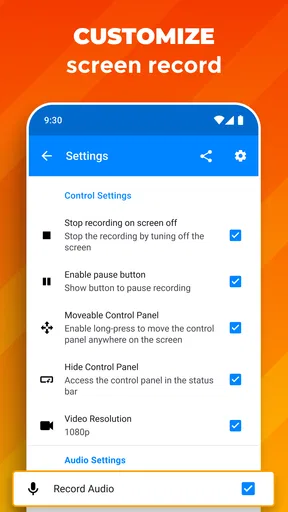
When it comes to recording quality, Screen Recorder: Facecam Audio doesn’t disappoint. You can record in HD, which is perfect for capturing every little detail. And the best part? You can adjust the resolution and frame rate according to your needs. Whether you want a smooth 60fps video or something lighter on your storage, this app has your back.
Those settings are most helpful when I decide what the video is for before pressing record. A clip intended to show small interface details benefits from a clearer image, while a quick personal reference may not need the largest file I can make. I’d do a brief test before a long capture, especially if the recording includes fast movement or a lot of small text. A short sample lets me check legibility and playback on the device I plan to share it from, instead of discovering afterward that I chose a poor balance.
Worth Reading Before You Choose

Flipboard Shows What News Apps Must Do Beyond the Feed

Switching to Android Auto Means Rethinking Your Driving Routine

Google Calendar Makes a Crowded Week Easier to Manage

Ludo King Makes the Most of the Minutes Between Plans

Baby Panda World Brings Quick Play to Modern Phones, but Its Game Library Feels Busy

ESPN’s Live Game View Makes Following Close Games Easier
There is also a practical trade-off between smoothness and file size. A higher frame rate can make rapid action look more fluid, but it is not automatically the better choice for a slow tutorial or a settings guide. I would reserve the more demanding-looking option for content where motion is part of the point, and keep routine demonstrations modest. That habit helps avoid filling storage with detail viewers will never notice.
When facecam and voice add real value
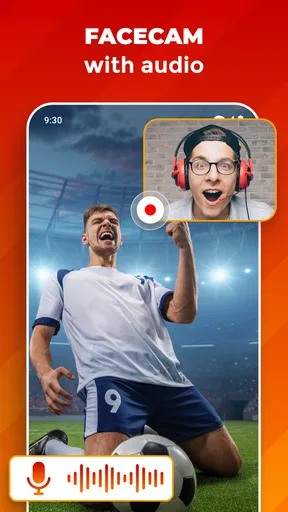
Another standout feature is the facecam. It allows you to record yourself while capturing the screen, adding a personal touch to your videos. It’s a fantastic feature for vloggers and gamers who want to connect with their audience.
I see the camera overlay as an option to use with intention, not a decoration that belongs in every recording. A face view can help when I’m reacting to a game or guiding a viewer through a task where expression and presence matter. For a clean how-to clip, though, the overlay may cover a button or piece of text that the viewer needs to see. I’d check where it sits against the screen content before recording a longer explanation, and leave it out when the screen itself needs the full frame.
Audio is useful, but deserves a quick check
Now, let’s talk about audio. This app lets you record internal and external audio simultaneously. You can capture the sound from your device and your voice through the microphone, making it perfect for walkthroughs or commentary. The audio quality is crisp, and you can easily adjust the levels to get the perfect mix.
In practice, recording device sound and narration together makes most sense when both are doing a job: a game’s audio can provide context while my voice explains what is happening, for example. If I only need to show a sequence of screens, narration may be enough, and extra sound can distract. I’d record a short check with the same kind of audio I expect in the full clip, then listen back before committing to a long session. This small routine is especially worthwhile when a recording cannot easily be repeated.
For a realistic everyday use, imagine a family member asking how to change a setting. I can capture the steps once, narrate the taps, and send the clip rather than trying to describe every screen in a message. In that situation, a facecam is probably unnecessary, and the clearest result comes from keeping the screen easy to read and the voice easy to hear. The app is at its most useful when I choose only the recording elements that help the person watching.
Small edits and a sensible sharing workflow
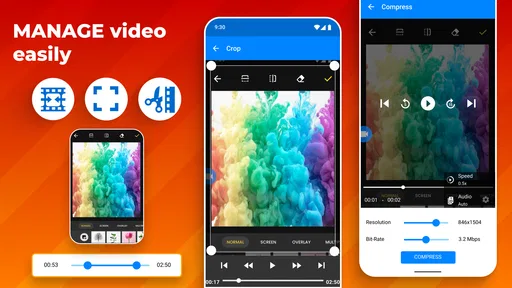
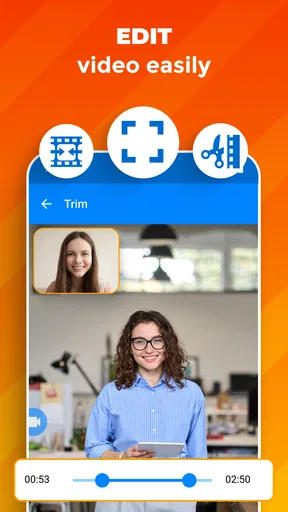
Once you’ve recorded your masterpiece, the app provides some nifty editing tools to polish your video. You can trim, cut, and merge clips directly within the app. While it’s not a full-fledged editing suite, it’s more than enough for quick edits and adjustments.
That distinction matters if I’m deciding whether this can replace a separate editor. Trimming an unneeded beginning or joining a few short pieces is a convenient way to make a clip ready to send. If I want a carefully arranged presentation with more involved changes, I would expect to move to a dedicated video editor instead. I treat the built-in tools as a finishing step for straightforward captures, not as a promise that every production task can happen in the same place.
A useful workflow is to record in short sections when the explanation naturally has separate steps. If I make a mistake, replacing one small capture is less frustrating than repeating a long recording from the start. Afterward, I can remove the dead air and keep the sections that explain the process. This approach also makes it easier to review what I have before sharing, rather than sending a lengthy clip that asks the viewer to hunt for the useful part.
Sharing without turning it into a production project
Sharing your creations is a breeze. With just a few taps, you can export your video in various formats and resolutions. It’s optimized for sharing on social media platforms like YouTube and Instagram, which is a massive plus if you’re looking to share your content with the world.
For a casual creator, the convenience is that capture and basic preparation sit close together. For someone who posts regularly, the more important question is whether the output fits a consistent editing and publishing routine. I would check the exported clip before posting, both to make sure the beginning and ending are clean and to confirm that important screen details remain visible. A fast share is helpful, but a quick review can prevent an avoidable re-recording or an unclear tutorial.
How it fits beside built-in recorders and editors
In terms of performance, the app runs smoothly without any noticeable lag or crashes. It’s reliable, which is crucial when you’re in the middle of an important recording session. Plus, it doesn’t hog your device’s resources, so you can multitask without any issues.
Compared with the screen-recording option already available on many phones, a dedicated app is most appealing when its camera overlay, audio choices, and in-app trimming suit the way I work. If I only need an occasional silent capture, the built-in tool may be simpler because it avoids adding another app to my routine. If I need a polished edit with detailed control, a separate editor is the more appropriate next step. This app sits between those choices: it is aimed at capturing and preparing a useful clip without turning every recording into a larger editing job.
I would not assume that a recorder can make every phone, app, or recording situation behave identically. Before using it for something important, I’d test the exact combination I plan to use: screen content, voice, device audio, and camera overlay if needed. That is not busywork; it is a way to learn whether the recording setup suits the task and to avoid building a workflow around a feature I only use occasionally.
What keeps it useful after the novelty fades
Long-term value comes down to frequency. The app is a sensible fit for people who regularly explain phone tasks, capture gameplay, or make short screen-led videos with spoken commentary. It can also help someone who supports less confident relatives or colleagues: a saved visual walkthrough can answer a recurring question more clearly than a paragraph of instructions.
It is less compelling for a person who records a screen only once in a while and has no use for the camera or audio options. In that case, the built-in recorder may already cover the occasional need. It may also be the wrong choice for someone whose normal process depends on extensive editing, because a few basic adjustments are not a substitute for a full editing workspace. The best reason to keep it installed is a recurring task, not the possibility that one day you might make a video.
There can be a small maintenance burden with any media workflow: deciding where finished clips belong, removing takes that are no longer useful, and checking a file before sharing it. Choosing a lower-demand recording setup when extra detail is unnecessary can help keep the output practical. I would also avoid recording a long explanation in one take if it can be split into clear sections; shorter pieces are easier to inspect, replace, and reuse.
Price, audience, and the ongoing decision
The app is free to download, with in-app purchases ranging from $0.99 to $99.99 per item. I would start with the free experience and judge it against a real task before paying for anything. That keeps the decision grounded in whether I actually use the recorder, rather than assuming that more spending is needed to make a useful clip.
Its 4.3 average comes from around 642,000 ratings, and it has passed 10 million installs. Those figures suggest that screen capture is a familiar need for many people, but they do not tell me whether it will fit my own habits. I’d use a handful of real recordings as the test: if I repeatedly rely on the overlay, combined sound, or quick trims, it has earned a place. If I keep reaching for the phone’s built-in recorder instead, there is little reason to maintain another app just because it once seemed promising.
The app was released in March 2016, and version 2.7.3 is listed for Android 5.0 and later. That makes checking compatibility a straightforward first step on an older device. It is rated Everyone, but the content a person records and shares is still their responsibility; a general age rating does not make every possible recording appropriate to distribute.
For anyone wondering whether it can handle a quick tutorial, a game capture, or a voice-led explanation, those are the tasks its mix of screen, camera, and audio recording is built to address. For a one-off silent clip, I would compare it with the recorder already on the phone. For complex post-production, I would plan on a dedicated editor. Thinking about the final use before recording is the simplest way to choose between them.
My lasting impression
Overall, Screen Recorder: Facecam Audio is a solid choice for anyone in need of a versatile screen recorder. It’s packed with features that cater to both casual users and professionals. The combination of high-quality recording, facecam integration, and robust audio capabilities make it a must-have tool in your app arsenal.
If you’re on the lookout for a reliable screen recording app that doesn’t compromise on quality or features, give this one a shot. You can thank me later!
My more measured recommendation is to keep it only if screen recording is part of something you do repeatedly. The strongest recurring value is the ability to combine a screen demonstration with your voice or camera, then make a quick cleanup before sharing. That can save time and make instructions easier to follow. If your needs are occasional and simple, the default recorder may be enough; if they are ambitious, a fuller editor will likely serve you better. For the middle ground, this is a practical tool whose usefulness grows with a clear, repeatable purpose.
Pros
- Easy-to-use interface with intuitive controls.
- High-quality video recording up to 1080p.
- Includes editing tools for quick tweaks.
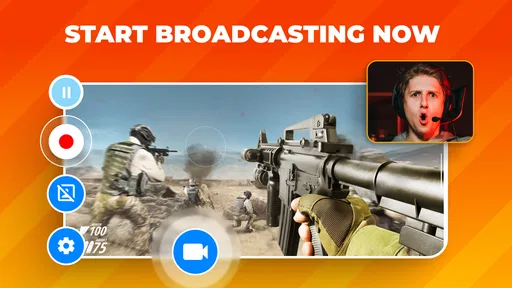
- Supports live streaming to platforms.
- Facecam feature adds personalization.
Cons
- Contains ads which can be intrusive.
- Limited features in free version.
- Some users report occasional lag.
- Requires permissions that may concern privacy.
- In-app purchases can be expensive.
FAQs for Screen Recorder: Facecam Audio
What features does Screen Recorder: Facecam Audio offer?
Screen Recorder: Facecam Audio provides a comprehensive set of features, including high-definition screen recording, a facecam overlay to capture your reactions, and internal audio recording for clear sound. It also offers editing tools, allowing you to trim and merge videos directly within the app, making it a versatile tool for content creators and gamers alike.
Is Screen Recorder: Facecam Audio free to use?
The app is free to download and use, offering basic features without charge. However, there may be in-app purchases or subscriptions available to unlock premium features, such as higher quality recording, advanced editing tools, or ad-free experiences. Check the app store listing for detailed pricing information.
How can I ensure the best quality recording with Screen Recorder: Facecam Audio?
To achieve optimal recording quality, ensure your device has sufficient storage and close any unnecessary background apps to free up resources. Use the app's settings to select the highest resolution and frame rate available. Also, ensure your device is charged or connected to a power source, as recording can be battery-intensive.
Does Screen Recorder: Facecam Audio support live streaming?
Yes, Screen Recorder: Facecam Audio supports live streaming to various platforms such as YouTube and Twitch. The app provides easy setup options, allowing you to connect your accounts and begin streaming with minimal fuss. Make sure you have a stable internet connection to avoid interruptions during live broadcasts.
Is the app compatible with all Android and iOS devices?
Screen Recorder: Facecam Audio is designed to work on a wide range of Android and iOS devices. However, to ensure full functionality, your device should meet the minimum operating system requirements specified in the app store listing. Some older devices may not support all features, such as high-definition recording or facecam functionality.


